HomeBlogWordPress Heartbeat API: What It Does and When to Slow It Down
WordPress Heartbeat API: What It Does and When to Slow It Down
The Heartbeat API keeps pinging your server while someone has wp-admin open. Here is what it is for, what you lose by turning it off, and how to limit it safely.
 By Mac
Builds the PluginLab plugins
If you have ever opened your browser's network tab on a WordPress admin screen, you have seen a request to admin-ajax.php that keeps repeating on its own. That is the Heartbeat API. It is part of WordPress core, it is on by default, and it is one of the most misunderstood things people switch off.
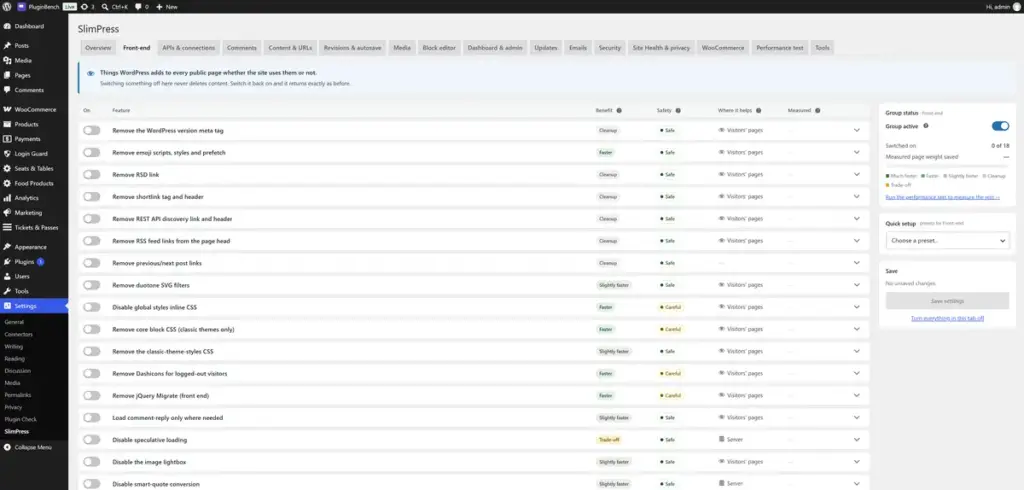
I built SlimPress to turn off parts of core that a site does not use, with each switch explaining what it might break. Heartbeat is a good example of why that explanation matters, because the right answer is not always "off".
What the Heartbeat API does
Heartbeat is a small timer in the browser. While a logged-in user has a WordPress screen open, it sends a request to your server every so often (roughly every 15 to 60 seconds, depending on the screen) and lets WordPress and plugins send data back. In core it is used for three things:
- Autosave of the post you are editing.
- Post locking, so two people do not overwrite each other, and the "someone else is editing this" notice.
- Login expiry, the prompt that asks you to log in again without losing your work.
Plugins can hook into it too, for example to refresh a live counter or a notification badge in the dashboard.
Why it can matter for server load
Every heartbeat is a full WordPress request. One editor with a tab open is nothing. A handful of staff who leave the dashboard open all day on a small shared host, or a shop where several people sit on the orders screen, add up to a steady trickle of admin-ajax.php calls that never stops. On a well-resourced server you will not notice it. On a weak one, it is often what you see when you check what is hitting the site while nobody is visiting.
I will not give you a speed-up figure for it, because it depends entirely on your hosting, how many people are logged in and what your plugins add to each beat. If you want a number for your own site, the performance test in SlimPress compares your pages with and without its features in the same run, and says "within noise" when the difference is too small to trust.
Slow it down, or turn it off?
These are different choices, and they have different costs.
- Leave it alone if you edit content regularly, have more than one author, or run plugins that show live data in the admin. Autosave and post locking are useful.
- Limit it by location if you want the saving without the constant background chatter. SlimPress has a Heartbeat switch per location, so you can treat different parts of the site differently instead of one on/off for everything.
- Turn it off in a location only where you know nothing there needs it, for example a screen where nobody writes content.
Switching it off completely is the option that costs you the most. Without it you lose the protections above in that location.
How to change it with SlimPress
- Install and activate SlimPress. Nothing changes on activation; every switch starts off.
- Go to Settings → SlimPress and open the APIs & connections group.
- Find the Heartbeat switches. Each one lists what it does and what might break, so read that before you save.
- Save, then use the site as you normally would. Open a post, edit it, and check that you are still seeing autosave and the editing notices where you expect them.
SlimPress also warns you if an active plugin is known to rely on something you are about to switch off.
What can break
The risk is concentrated in two places. If you turn Heartbeat off where people edit posts, autosave and post locking stop working there, so a browser crash costs more work and two editors can overwrite each other. And if a plugin of yours uses Heartbeat for live updates in the admin, those updates stop refreshing by themselves. Neither failure is loud, which is why I would test with a real post after changing it rather than assume.
How to undo it
SlimPress keeps the last 10 versions of its settings. Open Tools → Undo a change and restore an earlier version, whether the change was a single save, a preset or a reset. If you are not sure which switch caused a problem, pause one group at a time from its tab to find out. Every switch is a runtime filter, so deactivating the plugin puts WordPress back to its default behaviour on the next request. Nothing is written to core settings.
When another approach is better
If you only want Heartbeat tamed and nothing else, a plugin dedicated to that one job may be all you need, and a few lines of code in a small custom plugin can do it too. SlimPress makes sense when Heartbeat is one of several core features you want to review with the risks spelled out. It deliberately does not do caching, minification or script delaying, so it will not replace a performance plugin for those.
The short version
- Heartbeat powers autosave, post locking and login-expiry prompts in the admin.
- It matters mostly on weak hosting with several people keeping the dashboard open.
- Limit it where you can; turn it off only where nothing needs it, and test with a real post.
- You can undo any change from the Tools tab.
SlimPress is free on WordPress.org, with no pro tier and no telemetry. Support happens in the WordPress.org forums, in public.